~ 12 min read
Why Does Gemini Multimodal Still Swap S/5 and O/0? (And How to Fix It)
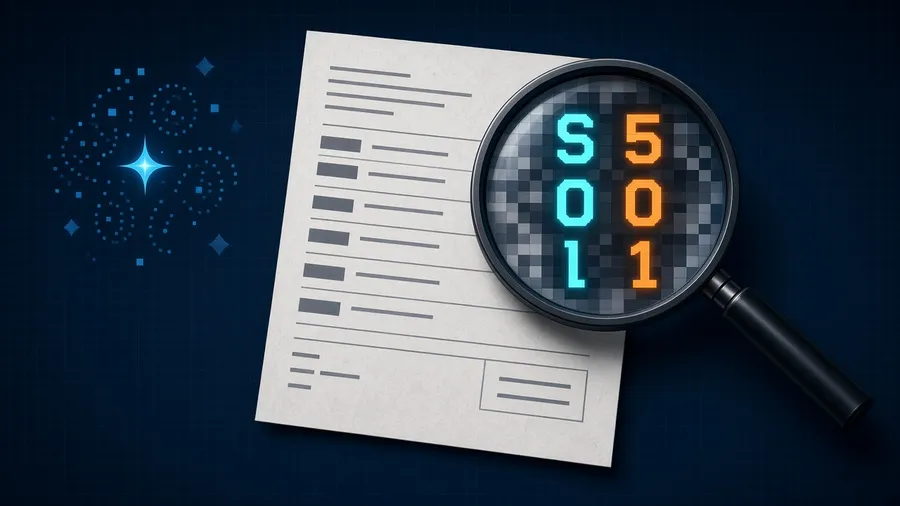
If you have integrated Google Gemini (like gemini-3.8-flash or gemini-3.1-pro-preview) into your data pipelines, you know it feels like magic. It handles shifting invoice layouts, messy receipts, and multi-page PDFs without breaking a sweat.
But once you move to production, a classic, frustrating roadblock pops up. The model will confidently read an S as a 5, an O as a 0, or an l as a 1 or i.
We were told Gemini doesn’t use old-school OCR under the hood. So why is it making the exact same rookie mistakes? More importantly, how do we stop it?
The Catch: How Gemini Natively “Sees”
Traditional document tools use a two-step approach: an OCR engine extracts raw text from an image, and a language model reads that text.
Gemini skips step one entirely. It is natively multimodal, meaning it directly processes raw pixels using a unified visual architecture. While this is great for understanding layouts, it introduces a few quiet engineering trade-offs:
- The Shrinkage Problem: Before processing, Gemini compresses your image into a fixed budget of visual tokens. Older models cut images into 768x768 tiles at 258 tokens each. Gemini 3 models instead give each image a budget set by the
media_resolutionparameter: 1,120 tokens by default (the same ashigh), 280 onlow, and 2,240 onultra_high. Squeeze a full invoice page into roughly a thousand tokens and a serial number in a small, dense font loses its details. The tiny visual curve that separates anSfrom a5can literally disappear. - Brain Over Brawn (Context Bias): Gemini is still a language model at heart, and it writes its answer one subword token at a time. A random alphanumeric string like
AB4S9has no sentence context to lean on, and a rare sequence likeS9is exactly where a model is most likely to drift toward something more familiar. If the pixels are even slightly blurry,AB459can win simply because it looks more “normal” to the model. - Look-Alike Glyphs: In many fonts,
Oand0orl,1, andIare drawn almost the same, and in some they are pixel-identical. A human squinting at the scan can’t always tell either. Sometimes the information simply isn’t in the image, and no amount of prompting will recover it. The goal then shifts from “always read it right” to “know when you can’t, and say so.”
You don’t have to just accept these typos as the cost of doing business with AI. Here is how to turn Gemini into a high-precision document parser.
7 Ways to Stop the Character Flips
1. Don’t Read Pixels When You Have Text
Before tuning anything, check what kind of document you have. Born-digital PDFs (exported from an invoicing system, not scanned) carry an embedded text layer, and that text is exact. Pull it out with a library like pdfplumber and use it as the source of truth for codes and amounts, with Gemini handling layout and field mapping.
The S/5 problem is mostly a scanned-document and photo problem. Knowing which inputs are which tells you where to spend the effort below.
2. Lock It Down with Pydantic Schemas
The absolute fastest fix is to take away Gemini’s freedom. Don’t let it return loose JSON or free text. Use Gemini’s structured outputs with a Pydantic model to force strict datatypes.
If a field is explicitly defined as an integer, the model can only emit digits there, so alphabetical guesses like S or O can’t sneak in. It can still pick the wrong digit, which is why the later fixes still matter. For codes with a fixed set of values, an enum locks things down even further.
Two type choices bite people in production:
- Never make an identifier an
int, even if it looks numeric. An invoice number like00451silently loses its leading zeros. Integer typing is for real quantities only. - Never make money a
float. Floats can’t represent most decimal amounts exactly. Ask for a string and parse it withDecimal, or store integer cents.
The example below uses the current google-genai SDK (pip install -U "google-genai>=2.3.0"). The older google-generativeai package stopped receiving support on November 30, 2025, so don’t start new projects on it. The Interactions API used here is still marked Beta, so pin your SDK version.
import base64
from decimal import Decimal

from google import genai
from pydantic import BaseModel, Field

client = genai.Client()  # Reads GEMINI_API_KEY from the environment
MODEL = "gemini-3.8-flash"

SYSTEM_PROMPT = (
    "You are a literal data extraction engine. Copy strings exactly as they appear. "
    "Do not auto-correct spelling, do not infer missing characters, and do not make "
    "assumptions based on surrounding text. If a code contains mixed numbers and letters, "
    "treat every character independently. If you cannot tell two characters apart "
    "(for example S and 5, O and 0, or l and 1), still give your best reading, but list "
    "that field in uncertain_fields."
)

class DocumentSchema(BaseModel):
    invoice_number: str = Field(description="Copy exactly as printed, including leading zeros.")
    quantity: int = Field(description="Whole number of units.")
    total_amount: str = Field(description="Total as printed, digits and decimal point only, e.g. 1249.50.")
    serial_code: str = Field(description="Copy exactly as printed, character by character.")
    uncertain_fields: list[str] = Field(
        description="Names of fields containing any character you could not read with certainty."
    )

def image_part(data: bytes, mime_type: str = "image/jpeg", resolution: str | None = None) -> dict:
    part = {"type": "image", "data": base64.b64encode(data).decode("utf-8"), "mime_type": mime_type}
    if resolution:
        part["resolution"] = resolution
    return part

def ask_json(parts: list[dict], schema: type[BaseModel]) -> BaseModel:
    interaction = client.interactions.create(
        model=MODEL,
        system_instruction=SYSTEM_PROMPT,
        input=parts,
        response_format={
            "type": "text",
            "mime_type": "application/json",
            "schema": schema.model_json_schema(),
        },
    )
    if not interaction.output_text:
        raise RuntimeError("Empty response: the request may have been blocked or cut off.")
    return schema.model_validate_json(interaction.output_text)

with open("invoice.jpg", "rb") as f:
    invoice = f.read()

document = ask_json(
    [{"type": "text", "text": "Extract the structured data fields from this document image."}, image_part(invoice)],
    DocumentSchema,
)
total = Decimal(document.total_amount)
3. Let the Model Say “I’m Not Sure”
Notice the uncertain_fields list in the schema above. This is the single most valuable field in the whole pipeline.
A model forced to fill every field will always produce something, and a confident wrong answer looks exactly like a right one. Giving it an explicit way to flag doubt turns silent errors into visible ones. Route any document with a non-empty uncertain_fields to a human review queue (or to the re-read step in fix #5) instead of straight into your database.
Treat the flag as a signal, not a guarantee: models are not perfectly calibrated and will sometimes be confidently wrong. That’s what fixes #6 and #7 are for.
4. Write a Strict System Prompt (and Leave the Temperature Alone)
By default, LLMs want to be creative. For data extraction, you want a boring, literal compiler.
The old reflex was to drop temperature to 0.0. Don’t do that with Gemini 3. Google strongly recommends keeping the default of 1.0, because lower values can cause looping or degraded output on these reasoning models. If you are still on a Gemini 2.5 model, a low temperature is fine.
Instead, put the rules in the system_instruction, like the SYSTEM_PROMPT above. Be realistic about what it does: a prompt can stop the model from “fixing” codes to look more plausible, and it can make the model admit doubt. It can’t make the model see pixels that the visual encoder already threw away. For that, you need fix #5.
One more knob worth testing is thinking. Gemini 3 reasons before it answers by default, and for transcription that reasoning can occasionally “correct” a code into something that makes more sense. Try generation_config={"thinking_level": "low"} against the default on your test set (see “Measure Before You Tune” below) and keep whichever wins.
5. Give the Encoder More Pixels: Locate, Crop, Re-Read
If your input text is tiny, the fix is to spend more of the token budget on the part that matters:
- Media Resolution: For images,
highis already the Gemini 3 default, so setting it changes nothing. The real step up isultra_high(2,240 tokens), set per image. It costs more tokens and latency, so use it on small crops, not whole pages. For whole PDFs, Google’s guidance is that OCR quality usually tops out atmedium. - Locate, Then Re-Read: Ask Gemini where the code is, crop that region from the original full-resolution image, and send just the crop back at
ultra_high. Gemini returns bounding boxes natively, so this works even without a fixed template:
from io import BytesIO

from PIL import Image

class Box(BaseModel):
    box_2d: list[int] = Field(description="Bounding box as [ymin, xmin, ymax, xmax], normalized to 0-1000.")

class SerialCode(BaseModel):
    serial_code: str = Field(description="Copy exactly as printed, character by character.")
    uncertain: bool = Field(description="True if any character could not be read with certainty.")

def crop_region(image_bytes: bytes, box: Box, padding: int = 20, upscale: int = 2) -> bytes:
    image = Image.open(BytesIO(image_bytes))
    width, height = image.size
    ymin, xmin, ymax, xmax = box.box_2d
    region = image.crop((
        max(0, (xmin - padding) * width // 1000),
        max(0, (ymin - padding) * height // 1000),
        min(width, (xmax + padding) * width // 1000),
        min(height, (ymax + padding) * height // 1000),
    ))
    region = region.resize((region.width * upscale, region.height * upscale), Image.LANCZOS)
    buffer = BytesIO()
    region.save(buffer, format="PNG")
    return buffer.getvalue()

box = ask_json(
    [{"type": "text", "text": "Return the bounding box of the serial code."}, image_part(invoice)],
    Box,
)
reread = ask_json(
    [
        {"type": "text", "text": "Read the serial code in this image."},
        image_part(crop_region(invoice, box), "image/png", resolution="ultra_high"),
    ],
    SerialCode,
)- Clean Up the Scan, Carefully: Fix rotation and skew first, since Google’s own tips call out correctly rotated images. Upscaling small crops (as above) usually helps. Be careful with binarization: a hard black-and-white threshold on a shadowed scan can erase the thin strokes that separate
Sfrom5, and modern vision models often handle greyscale well. If you do threshold, use an adaptive method (like OpenCV’sadaptiveThreshold), and measure whether it actually helps.
6. Cross-Check with a Second Opinion
A single read, however careful, gives you no way to spot its own mistakes. A second, independent read does.
- Hybrid OCR, Done Right: Traditional OCR engines (like Tesseract or the OCR processor in Google Cloud Document AI) are good at pixel-level geometry, but Tesseract confuses
Oand0too. Pasting its output into the Gemini prompt as a “reality check” risks Gemini simply copying the OCR engine’s mistakes. Instead, extract the field with both independently and compare. Where they agree, accept. Where they disagree, re-read the crop or send it to review. Document AI also returns confidence scores per token, which tell you which characters are shaky. - Self-Consistency: For critical fields, run the extraction twice (or with two different models) and compare. Because Gemini 3 runs at temperature
1.0, independent runs really are independent samples, so agreement means something. A misread that shows up identically twice is far rarer than one that shows up once.
7. Add a Programmatic Safety Net
Never let raw AI outputs hit your database without a sanity check in your code.
- Positional Format Checks: If your product codes always follow a format (say, two letters followed by three digits), use the position to resolve look-alikes: a
5in a letter slot must be anS, and anSin a digit slot must be a5. Gemini’s schema support doesn’t include regexpatternconstraints, so this check has to live in your code. Never “fix” a character the format can’t vouch for. If a code still doesn’t fit, flag it for review instead of guessing.
TO_LETTER = {"0": "O", "2": "Z", "5": "S", "8": "B"}  # No "1": it could be I or L
TO_DIGIT = {"O": "0", "o": "0", "I": "1", "l": "1", "Z": "2", "S": "5", "s": "5", "B": "8"}

def normalize_code(code: str, pattern: str = "LLDDD") -> str | None:
    """Resolve look-alikes by position. Returns None if the code can't fit the pattern."""
    if len(code) != len(pattern):
        return None
    resolved = []
    for char, kind in zip(code, pattern):
        if kind == "L":
            char = TO_LETTER.get(char, char).upper()
            if not char.isalpha():
                return None
        else:
            char = TO_DIGIT.get(char, char)
            if not char.isdigit():
                return None
        resolved.append(char)
    return "".join(resolved)

normalize_code("5K12O")  # "SK120": slot 1 must be a letter, slot 5 must be a digit
normalize_code("1K120") # None: a 1 in a letter slot is ambiguous, so send it to review- Check Digits: Many standardized identifiers carry a built-in checksum, so use the one the format defines. Card numbers use the Luhn algorithm, IBANs use mod 97, US bank routing numbers use a weighted 3-7-1 checksum, and shipping containers use ISO 6346. A single flipped character almost always breaks the checksum, so you catch it instantly.
Measure Before You Tune
Every fix above has a cost in tokens, latency, or code, and their benefits vary wildly between document types. Don’t guess which ones you need.
Build a small labeled test set, even 50 to 200 real documents with hand-checked values, and run your pipeline against it after every change. Track exact-match accuracy per field and the character error rate on your codes, and log which character pairs get confused. You’ll quickly see whether ultra_high crops, a different thinking_level, or a second OCR pass actually moved the numbers, and you’ll catch regressions when you upgrade models.
Architectural Trade-Offs
Choosing your fix comes down to complexity vs. reward:
| Solution | Code Complexity | Best Used For |
|---|---|---|
| PDF Text Layer | Low | Born-digital PDFs, where the exact text is already there. |
| Pydantic Schemas | Low | Keeping numbers and letters in their proper columns. |
| Uncertainty Flags + Review | Low | Turning silent misreads into visible ones. |
| Strict System Prompt | Low | Stopping the model from “fixing” codes to look plausible. |
| Positional Checks & Checksums | Low | Codes with a known format or a built-in check digit. |
| Cropping a Fixed Template | Medium | Ultra-small text on predictable, structured forms. |
| Dual Extraction | Medium | Random serial codes where a single read can’t be trusted. |
| Locate, Then Re-Read | High | Tiny codes on documents with no fixed layout. |
For most production apps, the sweet spot is simple: use the text layer when you have one, wrap your request in a strict Pydantic schema with an uncertainty field, validate every code in your own code, and send anything doubtful to review. If you are handling mission-critical alphanumeric codes where a single typo breaks your business logic, add a locate-then-re-read pass and a second independent extraction, and keep a labeled test set to prove they’re earning their cost.